How to Install Plugins Using the Plugin Installer
The WarNodes Plugin Installer makes it easier to install supported Minecraft plugins without manually uploading every plugin file.
Note: These instructions apply to servers where the Plugin Installer is enabled. The available options and interface may vary.
Step 1 — Open Your Server
Log in to your WarNodes panel.
Select the Minecraft server where you want to install a plugin.
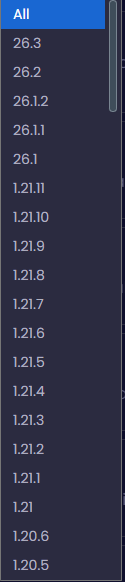
Check your server software and Minecraft version.
Step 2 — Open the Plugin Installer
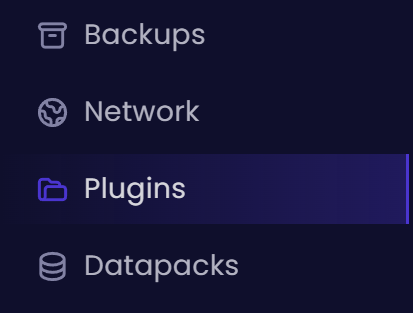
Look for Plugin Installer in your server navigation.
Open the installer.
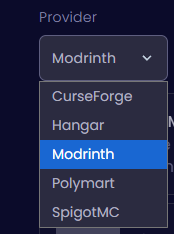
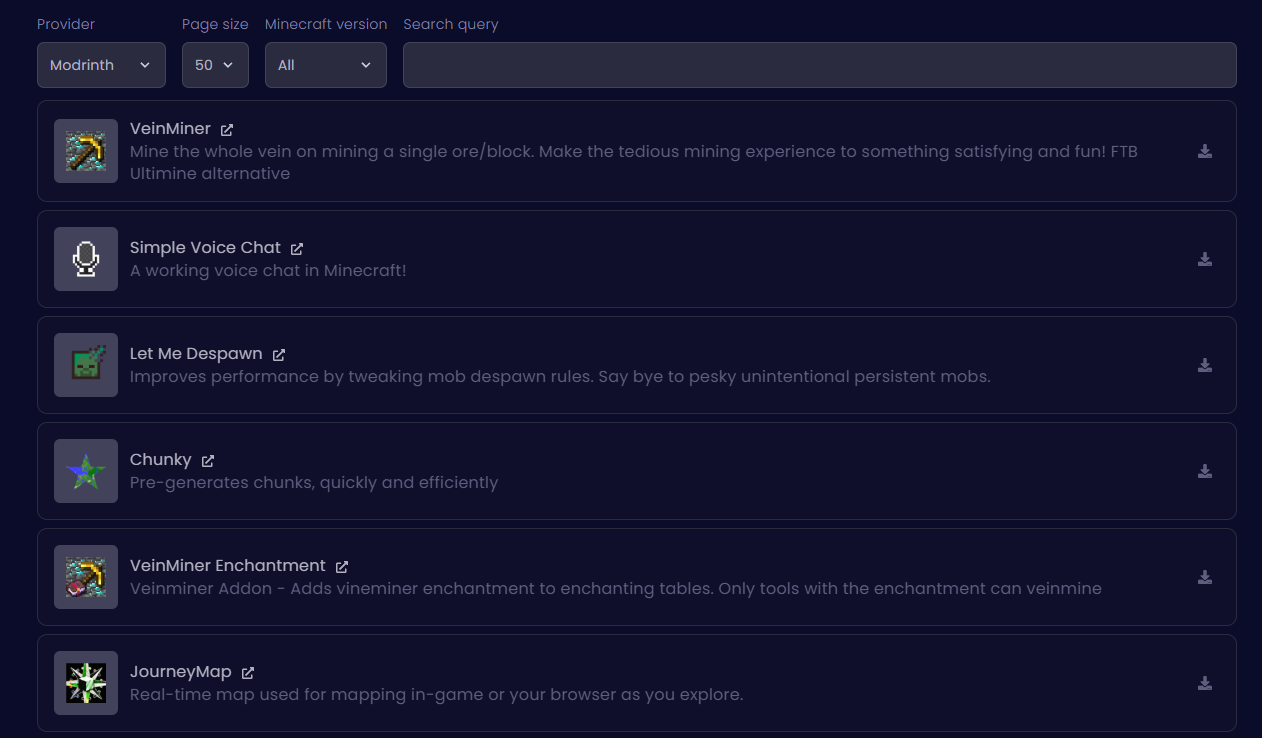
Browse the available plugins or use the search feature, if provided.
Select the plugin you want to install.
If you cannot find the Plugin Installer, it may not be enabled for your server. Contact WarNodes support for assistance.
Step 3 — Check Compatibility
Before installing a plugin, verify that it supports:
Plugins designed for Bukkit-compatible servers generally do not work on a standard Vanilla server.
Step 4 — Install the Plugin
Open the selected plugin's details.
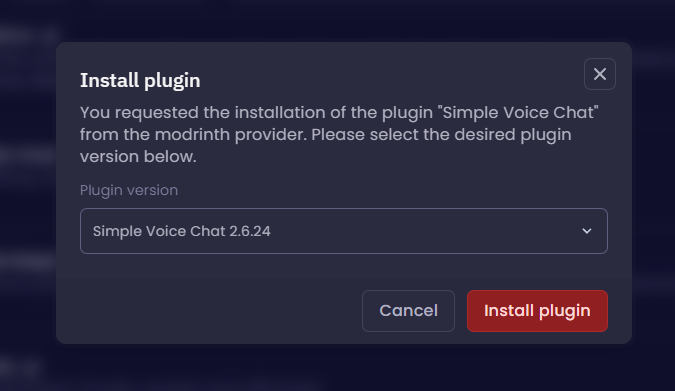
Choose a compatible version if version selection is available.
Review any dependency or installation information.
Click the available Install or confirmation control.
Wait for the installer to finish.
Do not close the page or repeatedly submit the installation while the operation is processing.
Step 5 — Start and Verify Your Server
Start your server if it is offline.
Open the Console.
Wait for the server to finish starting.
Review the console for plugin loading errors.
Join the server and test the plugin.
Some plugins generate their configuration files on the first successful startup.
Troubleshooting
Plugin Installer Is Missing
Check whether the feature is enabled for your server. If it should be available, contact WarNodes support.
Plugin Installation Fails
Check the displayed error, available storage, and plugin compatibility. Retry only after identifying and resolving the cause.
Plugin Does Not Load
Verify that the plugin supports your Minecraft version and server software. Check the console for missing dependencies or Java errors.
Plugin Causes a Crash
Stop the server and use the File Manager to disable or remove the recently installed plugin after making a backup.
Important Notes
Download or install plugins only from trusted sources.
Check compatibility before installing.
Back up your server before making major changes.
Do not assume every plugin is available in the installer.
If the problem persists, contact WarNodes support with the plugin name and relevant console logs.